







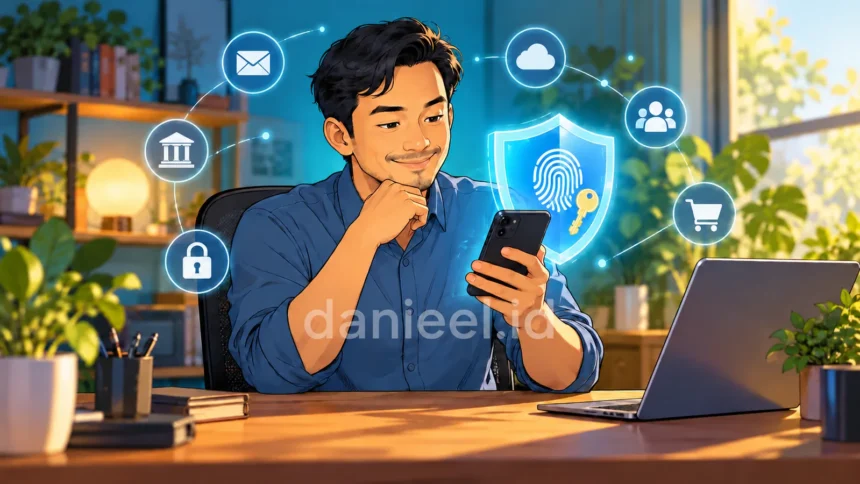
Let’s count for a second: email, WhatsApp, social media, online shops, mobile banking, e-wallets, not to mention ride-hailing apps and streaming subscriptions. How many accounts do we have now? If your answer is “no idea, a lot,” relax, you’re not alone, hehe.
This is exactly why we need to secure digital accounts. One hijacked account can spill over everywhere: scammers contacting our family in our name, reading private conversations, even trying to take over other linked accounts. The good news is that the ways to protect them keep evolving. Passwords are still around, but now we also have passkeys, biometric verification, and the option to sign in with a Google or Apple account.
Well, learning to secure digital accounts is a lot like looking after a house. A strong door lock matters, but we also need a fence, a porch light, watchful neighbors, and a spare key left with someone we trust. No single padlock can protect everything.
A quick honest note: nothing makes an account 100% bulletproof. What we can do is make hijacking much harder, and make recovery easier if something does happen.
Below, I’ve summed up 11 steps to secure digital accounts that you can put into practice. Start with your main email and any money-related accounts, then tidy up the rest one by one. Let’s go through them one at a time:
Create long, hard-to-guess passwords
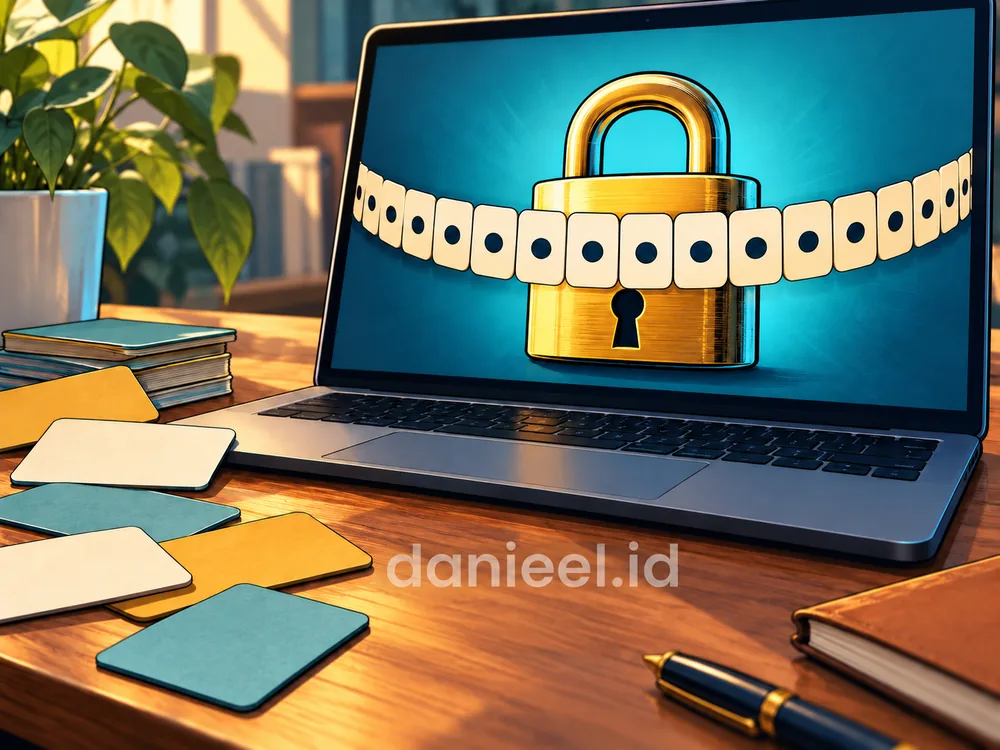
For services that still use passwords, length matters more than just “looking complicated.” The NIST authentication guidelines set a minimum of 15 characters for passwords that are an account’s only line of protection. The guidelines are aimed at service providers, but the number works well as a personal benchmark.
The easiest way to get there is a phrase made of several randomly chosen words, with a little variation added through capital letters, numbers, or symbols. Avoid birthdays, your partner’s name, number sequences, and famous quotes. A short password packed with symbols, like P4ssword!, is still easy to guess because the pattern is so common.
Examples of good patterns (don’t use them as they are, since they’ve now been published here):
kOpi7tuBruk!maNis ✓
naSi3goRenG#pedAs ✓
esTeh9maNis&dinGin ✓
Don’t:
P4ssword! X
adm1n X
iloveyou X
Practical example: pick three random objects on your desk right now, say “glass,” “stapler,” and “calendar,” then string them into a phrase with your own twist. The result is long, has nothing to do with your personal data, and is still easy to remember.
Use a different password for every account
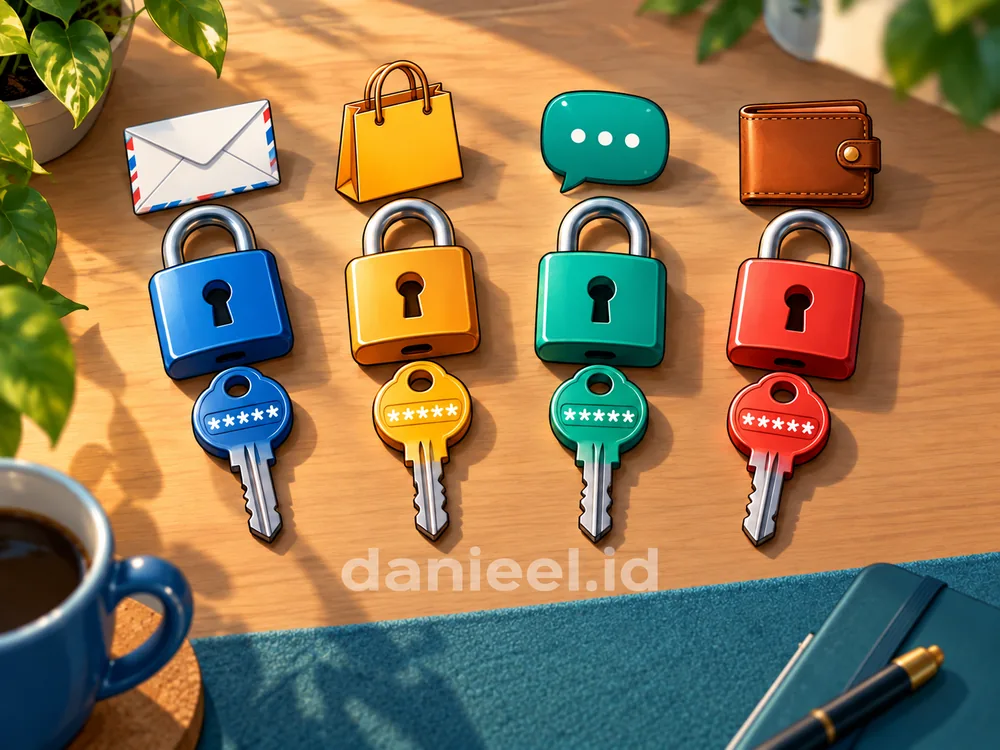
Using one password for every account is certainly convenient. The catch is that when one service gets breached, attackers will try the same email and password pair on other services. It’s like using one key for your house, your car, and your safe at the same time: lose one, lose them all.
When you set out to secure digital accounts, your main email deserves the most attention, because password-reset links for almost every account are sent there. And don’t create easy-to-guess variations either, such as adding the app’s name to the end of the same password.
Practical example: if your online shop password turns out to be the same as your email password, change the email password first. So when should you change a password? When there are signs of a leak, when it has been reused, or when you’ve accidentally typed it into a fake site. Changing passwords every three months for no reason is no longer a general NIST recommendation. What matters is the quality of the password and how quickly you act when there’s a real risk.
Secure digital accounts with passkeys and biometrics
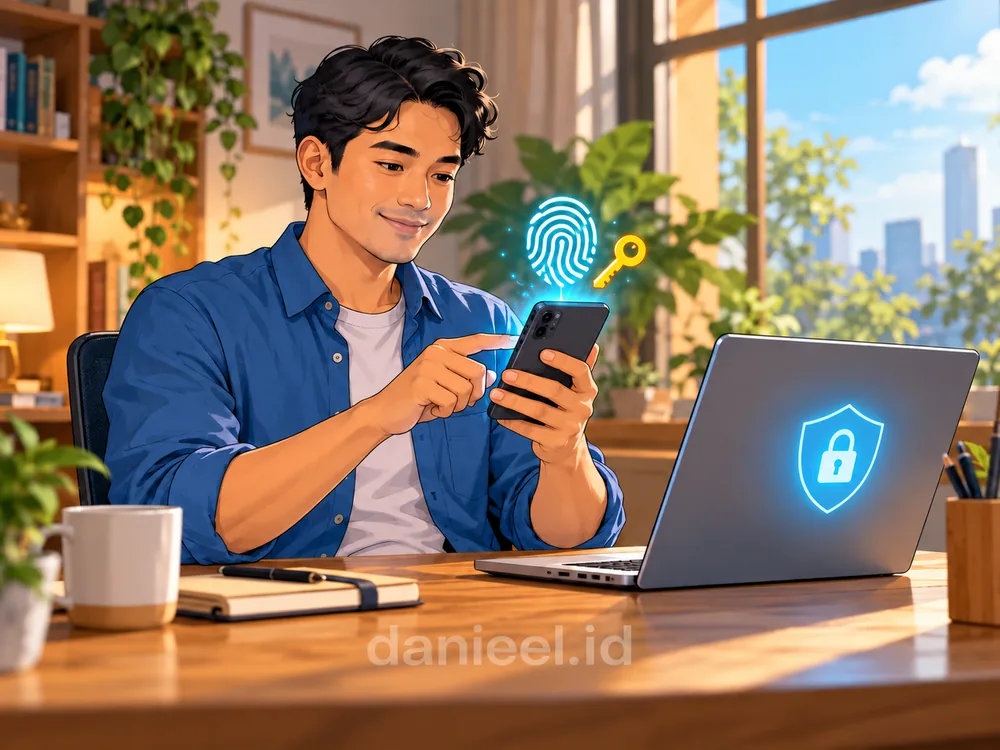
Passkeys are a password-free way to sign in that uses a cryptographic key pair (a kind of digital padlock and key that only fit each other). Because they’re tied to the genuine site, passkeys are far more resistant to phishing. We simply approve them with a fingerprint, face, or device PIN, and that biometric data stays on the device.
To try it, open your account’s security settings and look for the passkey option. Follow Google’s passkey guide; Apple device users can read Apple’s explanation of passkey security.
Practical example: turn on a passkey for your Google account, then the next time you sign in on your laptop, choose “use passkey” and just touch your finger to your phone. One thing to remember: only create passkeys on devices you own. And a face scan doesn’t necessarily mean the app is using a passkey; sometimes biometrics only unlock the app or fill in a saved password.
Use a password manager when needed
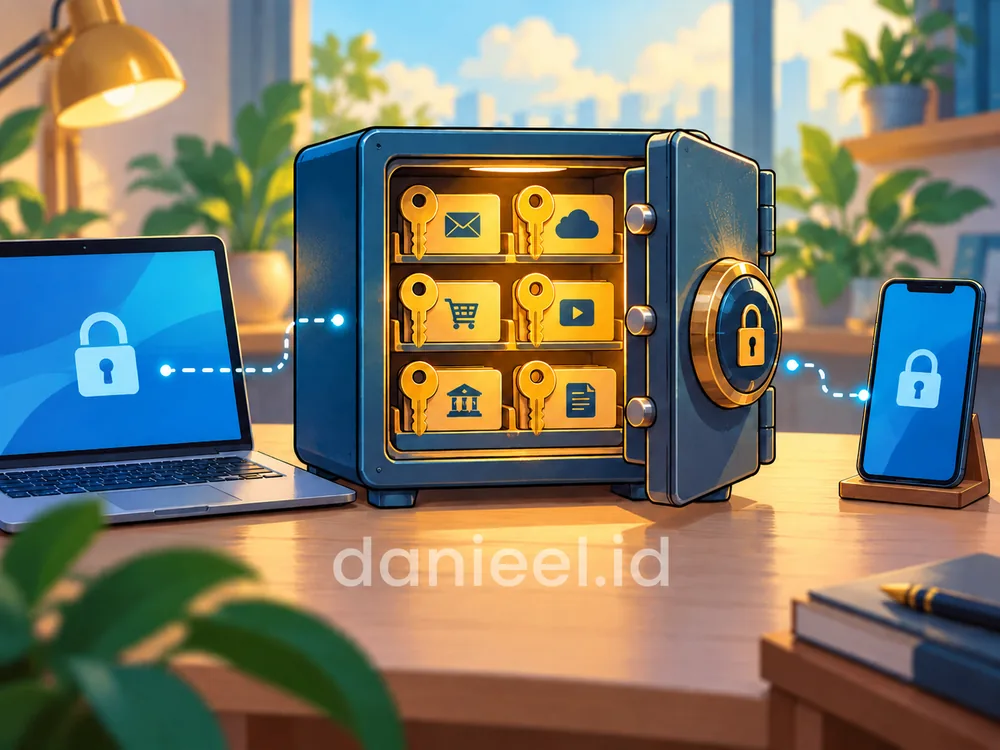
Remembering dozens of long, different passwords is a real headache. To secure digital accounts that number in the dozens, a password manager can help: it generates random passwords, stores them in an encrypted vault, and autofills them only on the matching website address. Most of them now support passkeys too.
The upsides are pretty clear. We only need to remember one master password, every account can have a unique password, and the app won’t fill in a password on a fake site with a different address. The downsides? All our eggs are in one basket. Forget the master password and we could be locked out of everything. Paid services also come with a subscription fee, and the provider itself can become a target, as in the 2022 LastPass incident, when encrypted copies of users’ vaults were stolen.
Some options with a solid track record and clear security documentation:
- 1Password: paid, polished, and offers a family plan.
- Bitwarden: open source, with a fairly complete free version.
- Apple Passwords: free and built into iPhone, iPad, and Mac.
- Google Password Manager: free and integrated with Chrome and Android.
One often-forgotten feature is sharing access securely. 1Password Families lets us create a shared vault for the family, Apple Passwords offers sharing groups for trusted people, and Bitwarden offers Emergency Access, which gives an emergency contact access to the vault after a set waiting period. That means if something happens to us, our heirs can still find our bank, insurance, or important email accounts without guesswork, and without us sending passwords over ordinary chat.
For an extra layer of protection, I suggest a simple technique: store most of the password in the app, then add a few characters that only you remember when you type it. If the vault ever leaks, the passwords stored there are incomplete. This technique suits your most important accounts, such as your main email and banking, not every single account.
Practical example: the app stores “kOpi7tuBruk!maNis,” while the full password is that phrase plus four secret characters at the end that you always type manually. The trade-off is that you have to complete the autofill yourself, and your heirs also need to know that secret piece, for example through a written note kept with your will. And don’t forget to protect the app’s master password with a strong phrase and turn on additional authentication.
Turn on additional authentication where the service supports it
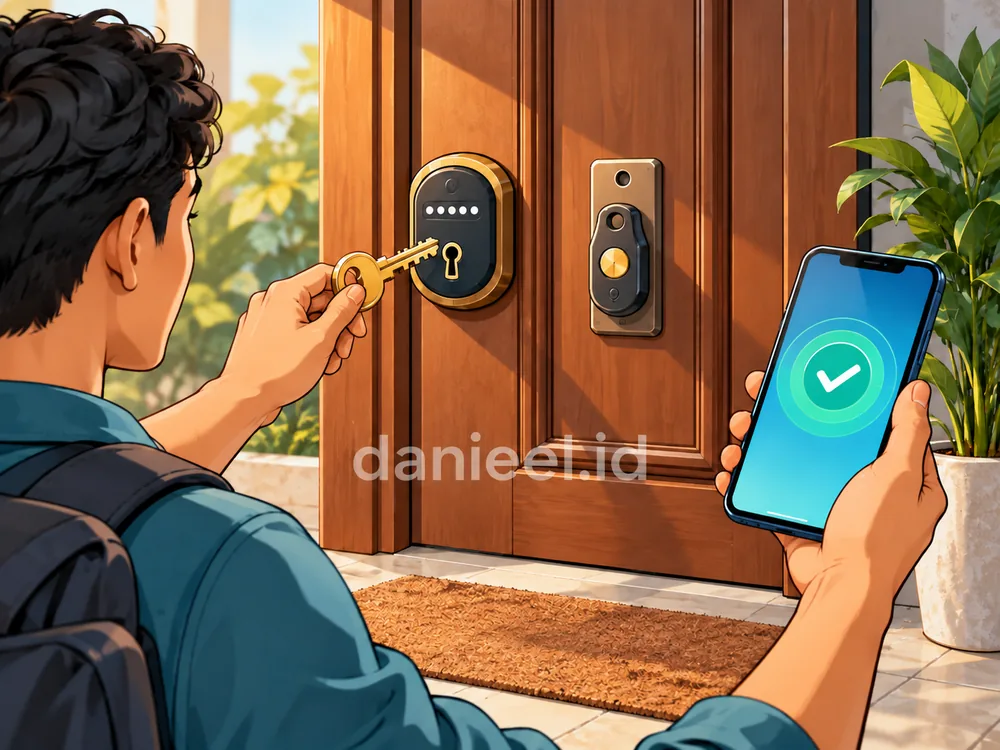
If an account still uses a password, turn on two-factor authentication (2FA). That way, a leaked password alone isn’t enough to get in. The order of strength is roughly this: physical security keys (FIDO2) and passkeys are the most phishing-resistant, followed by codes from an authenticator app, then SMS. SMS is indeed the weakest because a phone number can be taken over, but it’s still far better than no extra factor at all.
Practical example: for WhatsApp, go to Settings, Account, then Two-step verification, and create a six-digit PIN. If someone tries to register your number on another phone, they’ll be asked for that PIN. Menu names may change depending on the app version, so follow the latest official instructions. I’ve also written at greater length about the importance of two-step verification.
Use Sign in with Google or Apple wisely
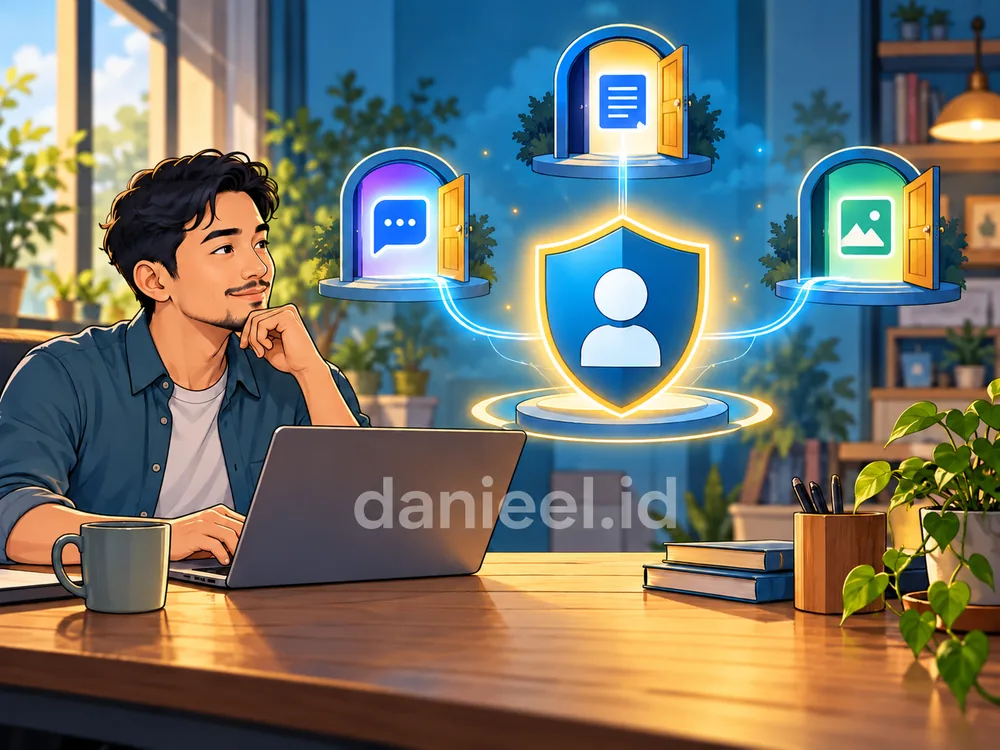
The Sign in with Google and Sign in with Apple buttons let us get into other apps without creating a new password. Sign in with Google cuts down the number of passwords we have to manage, while Sign in with Apple can even hide our real email address.
The consequence is that the Google or Apple account becomes a “master key.” If that account runs into trouble, access to the linked services can be disrupted too. So protect the master account with a passkey or 2FA, and make sure its recovery options are ready.
Practical example: open your Google account’s security page, find the list of connected third-party apps, then revoke access for quiz or game apps you no longer use. Before revoking anything, make sure you can still get into important services another way.
Guard your OTPs and watch out for phishing
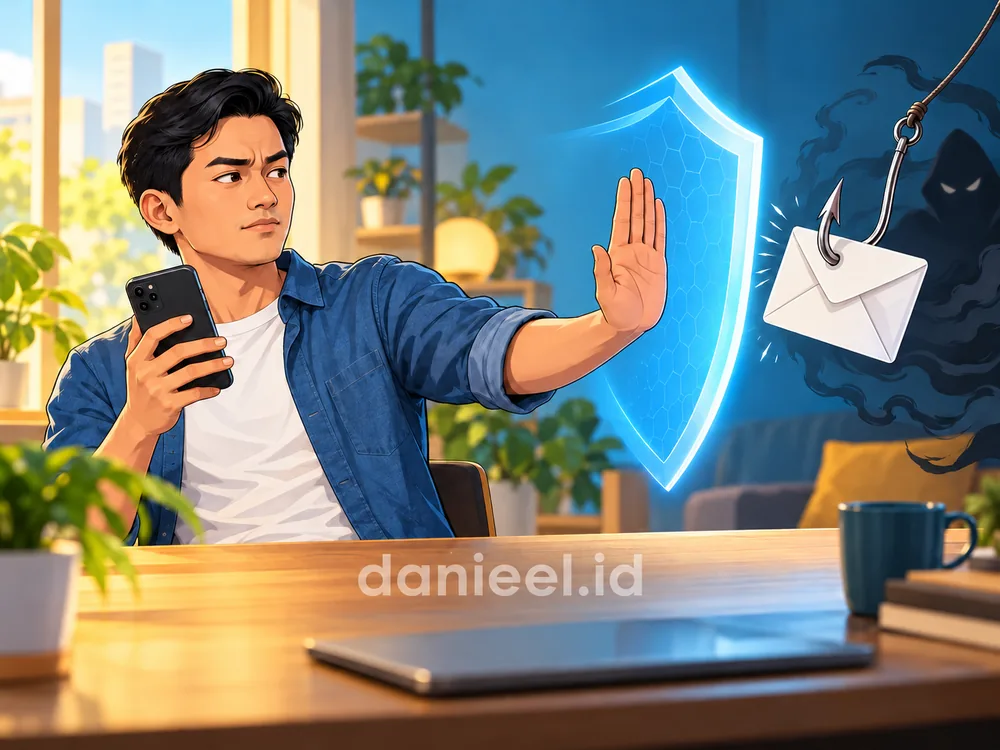
Scammers can pose as bank staff, couriers, friends, even relatives. The trick is almost always the same: make us panic or tempt us, then ask for a password, OTP (one-time password), recovery code, or login approval. The rule here is simple: an OTP is only ever entered in an official flow you started yourself, and never read out to anyone.
When you get an urgent message, open the official app or type the website address yourself. Check the full domain, not just the logo. The HTTPS padlock only means the connection is encrypted; scam sites can have one too.
Practical example: a WhatsApp message says “Your package is on hold, check the tracking number here,” with a link or an APK file attached. Don’t click it. Check the tracking number directly in the courier’s official app or website. If your “child” or “nephew” suddenly asks for a transfer from a new number, call their old number first. Message patterns like these are also closely tied to the hoax phenomenon that plays on our emotions.
Use public Wi-Fi with the right kind of caution
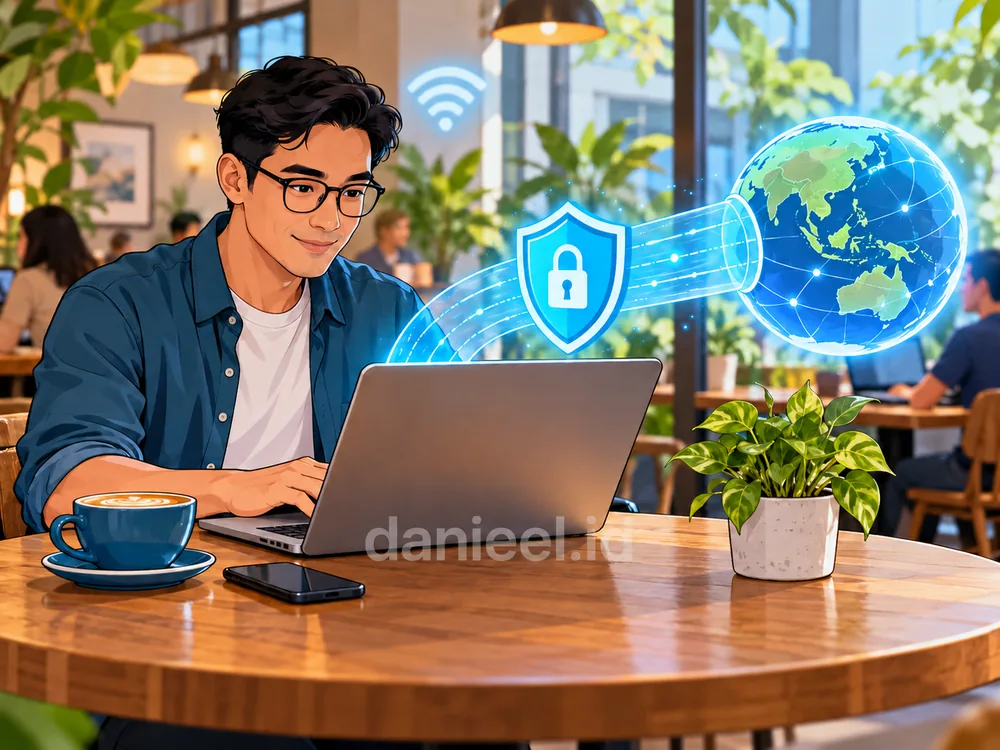
Free Wi-Fi doesn’t automatically mean other people can read what’s on our devices. The FTC explains that because most websites now use encryption, public Wi-Fi is generally safer than it used to be. Still, make sure the network name is the right one, and don’t ignore certificate warnings in your browser.
Practical example: a café has two networks, “KopiSenja_Free” and “KopiSenja-Guest.” Ask the cashier which one is official before connecting. If the hotspot asks you to install an app, a configuration profile, or a certificate, just say no. For money transfers, switch on your mobile data; it costs far less than the risk, hehe. A trusted VPN can help, but it won’t turn a fake site into a safe one.
Update your system, browser, and apps
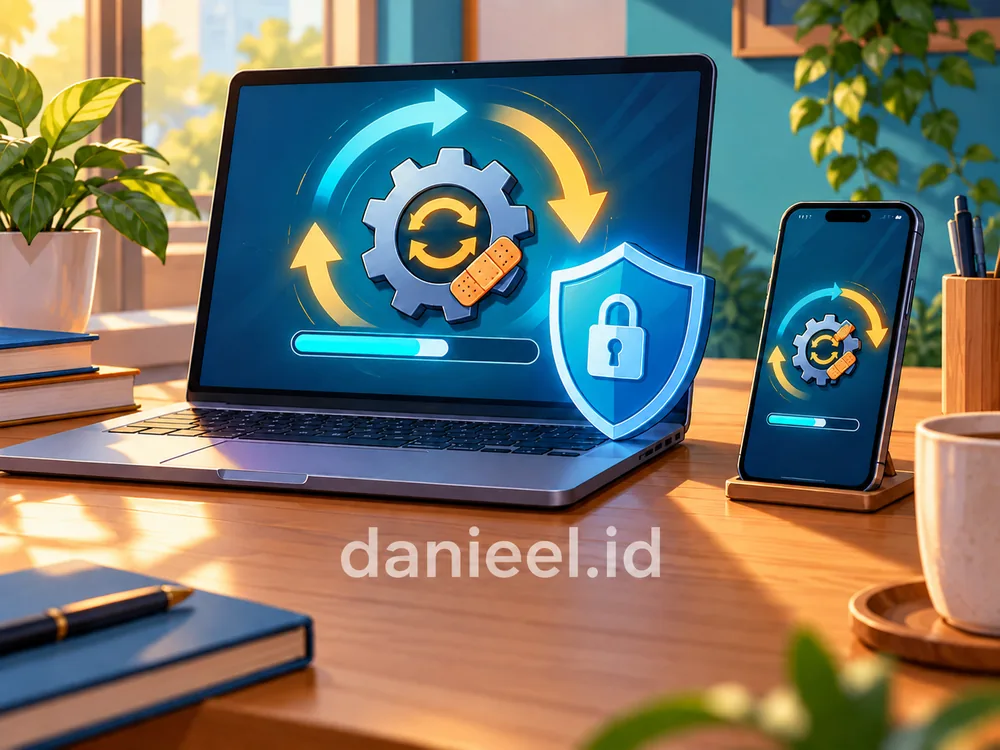
Updates aren’t just about new features. Operating systems, browsers, apps, and extensions are updated to patch known security holes, and known holes are an attacker’s favorite target. Turn on automatic updates where available, then give your device the chance to finish installing and restart.
Also check whether your device still receives security support. An old phone that no longer gets updates shouldn’t be used for your main email or mobile banking.
Practical example: set a regular time, say Friday night before bed, to let your phone and laptop install updates while they charge, instead of tapping “remind me later” again and again. Small habits like this go hand in hand with keeping gadget addiction in check: we stay in charge of technology, not the other way around.
Choose trusted apps and limit their permissions
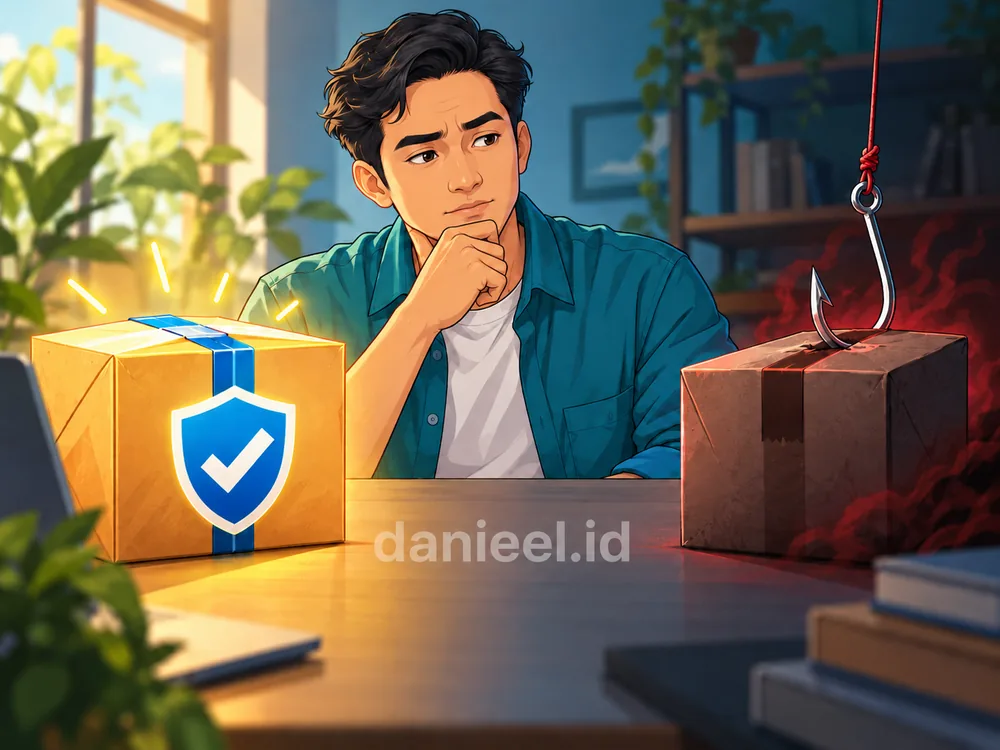
Download apps through official stores or developer websites you can verify. Official stores help filter things out, but they don’t guarantee every app is risk-free. Check the developer’s name, what the app does, and the permissions it asks for. A flashlight app that wants access to your contacts and SMS? Wait, what?
Practical example: avoid APK files posing as “wedding invitations,” “traffic tickets,” or “tracking receipts” from unknown numbers. Never grant accessibility, SMS-reading, or remote-control permissions just because someone claims to be an official helping you out. Once a month, open the app list on your phone, delete the ones you don’t use, and revoke excessive permissions. Efforts to secure digital accounts with strong passwords and passkeys won’t help much if the device itself has already been compromised.
Protect your devices and prepare account recovery
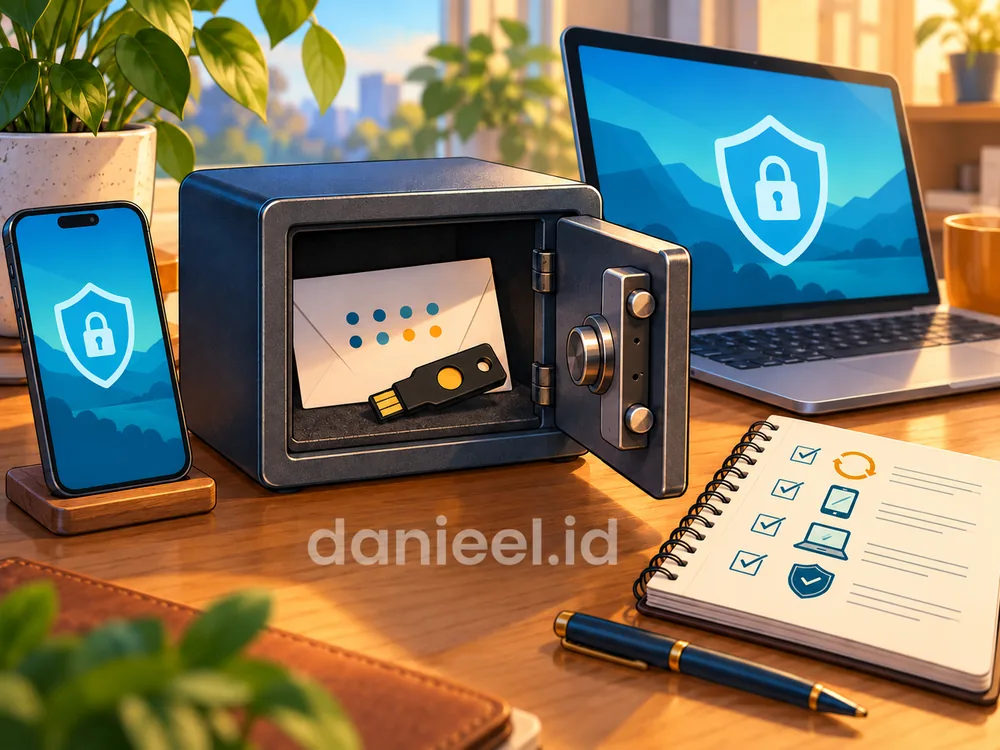
Use a strong screen lock, biometrics where available, and device-tracking features. On Windows, Windows Security already includes Microsoft Defender Antivirus; just make sure its protection is turned on. Paid antivirus isn’t a must for every device.
The final step to secure digital accounts is preparing a way back home if an account gets into trouble: a recovery email or phone number that’s still active, and backup codes stored separately from your phone. If an account has already been hijacked, use a trusted device to follow the official recovery guide, change the affected passwords, sign out any unfamiliar sessions, and check any recovery details that may have been changed. If there are unauthorized transactions, contact your bank or payment provider right away.
Practical example: print your Google account’s backup codes and put them in your important-documents folder, alongside your bankbook and insurance policy. If your phone goes missing, that simple piece of paper is what saves your access to the account.
Wrapping Up: Let’s Start Securing Our Digital Accounts Today
In short, to secure digital accounts means creating long, unique passwords, switching to passkeys where possible, using a password manager when needed, turning on 2FA, guarding the master account, refusing OTP requests, staying careful on public Wi-Fi, keeping devices updated, choosing apps carefully, and preparing a recovery path.
Back to that house analogy: a strong lock, a sturdy fence, and a spare key in trusted hands. All of those layers support one another.
Start small: today, check your main email. Turn on a passkey or 2FA, change the password if you’ve ever reused it, and save the backup codes. Next week, move on to your bank and WhatsApp accounts. Who knows, one day we might thank our present selves for it.
Hope this helps.
This post is also available in: