








Ever received a WhatsApp message from an old friend suddenly asking to borrow money, even though the way they wrote didn’t sound like them at all? Or heard about a relative whose social media account was taken over and then used to scam everyone on their contact list? Stories like these are no longer rare. What we seldom realize is that many of them could have been prevented with a single setting that takes only five minutes.
This is where two-step verification comes in. With this feature, a password alone isn’t enough to get into an account; anyone trying to log in also has to pass a second step, such as a code from an app, a confirmation on your phone, or your fingerprint. How effective is it? Research by Google with New York University and UC San Diego found that an SMS code alone blocked 100% of automated bot attacks and 96% of bulk phishing attacks, while an on-device prompt blocked 99% of bulk phishing. In other words, out of 100 account takeover attempts through bulk phishing, only about one to four get through.
Well, two-step verification is a lot like withdrawing cash from an ATM. The card alone isn’t enough; without the PIN, the machine won’t give you a single cent. Your password is the card, and the second step is the PIN.
A quick honest note: menu names and the location of settings in apps change fairly often, sometimes within just a few months. So the steps below are best read as directions, not a rigid sequence of clicks. If what you see on your phone looks different, just type “security”, “two-step verification”, “two-factor authentication”, or “passkey” into the settings search bar, or open the official help page linked in each section.
Below, I’ve summarized how to turn it on for six services we use every day. But before that, let’s get to know the options for that “second key”. Let’s go through them one by one:
Getting to Know Your Second Key Options: From SMS to Passkeys
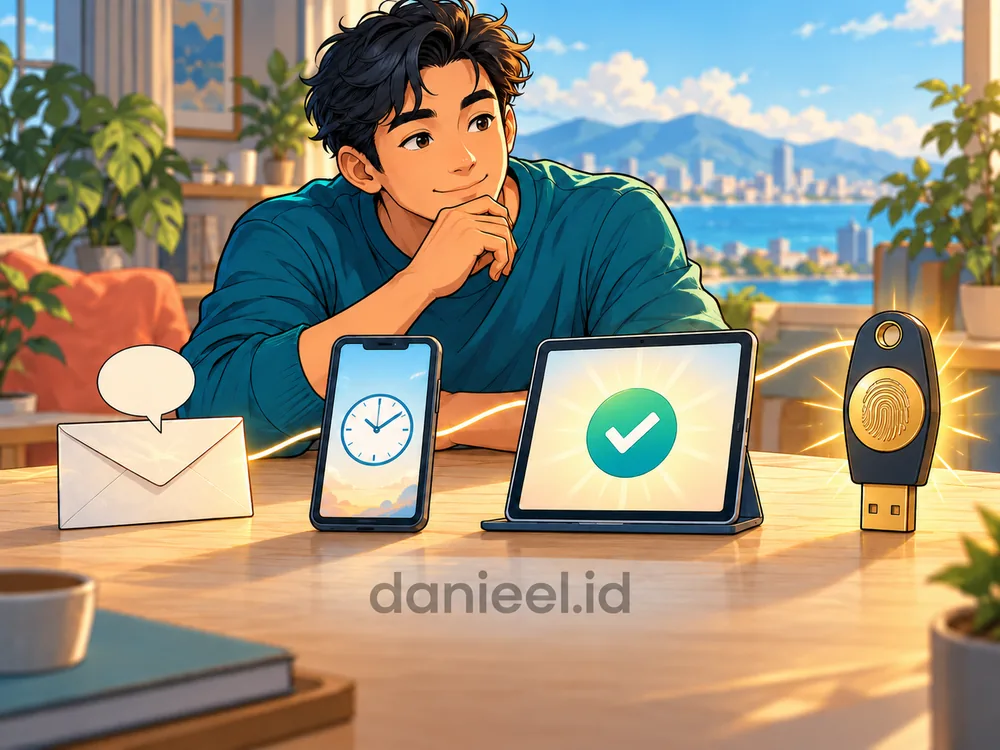
Not every second step is equally strong. From the simplest to the toughest, the order looks roughly like this:
- SMS codes. The easiest, but also the most vulnerable. Your phone number can be hijacked through a SIM swap scam, and the code can be coaxed out of you by a fake “officer” over the phone.
- Authenticator apps. These generate a six-digit code that changes every 30 seconds and keeps working without a signal. Examples include Google Authenticator, Microsoft Authenticator, 2FAS, and Ente Auth. Choose one that supports backups, so your codes don’t disappear when you switch phones.
- On-device confirmation. A “Is this you?” notification that you simply answer with Yes or No.
- Passkeys and physical security keys. You sign in with just your fingerprint, face, or phone screen lock. A passkey is tied to the genuine website, so a fake site can’t trick it out of you.
So, if a service offers passkeys or an authenticator app, go with those first. But remember, SMS is still far better than having nothing at all.
Google Account and Gmail

Your Google Account is the “master key”: Gmail, YouTube, Google Drive, Google Photos, and even the recovery of other accounts often depend on it. So start here. Go to myaccount.google.com, choose Security (Security & sign-in), then under how you sign in to Google, select Turn on 2-Step Verification and follow the prompts, as described in Google’s official guide.
Google now offers several options: passkeys, security keys, Google prompts on your phone, authenticator apps, and codes via SMS or phone call. Google itself warns that SMS codes are more vulnerable to phone number–based attacks. Don’t forget to download or print your eight-digit backup codes just in case your phone gets lost.
Two-Step Verification on WhatsApp
WhatsApp has a classic loophole: anyone who manages to get hold of the registration code sent by SMS can move your account to their own phone. Two-step verification closes this gap by asking for an extra password. To set it up, open Settings > Account > Two-step verification, turn it on, then add an email address for recovery.
Interestingly, WhatsApp has replaced the six-digit PIN with a full password that is longer and can include letters, numbers, and symbols. If you’re still using a PIN like 123456 (come on, admit it, hehe), now’s the time to change it. From Settings > Account > Passkeys, you can also set up a passkey so that logging back in only takes your fingerprint or face.
Facebook and Instagram via Accounts Center
Meta now brings the security settings for Facebook and Instagram together in Accounts Center. In the Facebook app, open Menu > Settings & privacy > Settings > Accounts Center > Password and security > Two-factor authentication, then choose the account you want to secure. On Instagram, the path is similar: from your profile, open the settings menu, go to Accounts Center, then to the same section.
According to Malwarebytes’ guide, the available options include an authenticator app (the recommended one), codes via SMS or WhatsApp, and a physical security key. Also save the recovery codes you’re given. Conveniently, you can manage the security of your linked Facebook and Instagram accounts from one place.
Apple Account on iPhone

The good news is that two-factor authentication is already the default security method for most Apple Accounts (formerly called Apple ID). Even so, it’s worth checking: open Settings, tap your name, then choose Sign-In & Security. If it isn’t on yet, turn it on and follow the prompts, as explained on Apple’s support page.
Once it’s on, every time you sign in on a new device or on the web, Apple sends a six-digit code to your trusted device or trusted phone number. Make sure the registered number is still active. An old number that’s no longer in service can actually lock you out of your own account.
TikTok

TikTok accounts with lots of followers, especially those used for selling, are easy targets for hijackers. Go to Profile > the three-line menu > Settings and privacy > Security > 2-step verification. TikTok asks you to choose at least two methods, for example an authenticator app plus SMS or email, so there’s still a way in if one of them is lost.
Make an authenticator app your main method whenever it’s available. When TikTok shows a QR code during setup, scan it directly with your authenticator app. Don’t save it as a screenshot in your gallery, because that QR code contains your account’s secret key.
Telegram
Telegram takes a slightly different approach. Its two-step verification is an extra password requested after the SMS code, so someone who steals your SMS code is still stuck at the front door. To set it up, open Settings > Privacy and Security > Two-Step Verification, create a password, then add a recovery email, as described in Telegram’s official FAQ.
Telegram also supports passkeys through Privacy and Security > Passkeys, so you can sign in with your fingerprint, face, or device PIN without waiting for an SMS. One message from Telegram is worth underlining: secure that recovery email too, with a strong password and two-step verification. There’s no point locking the front door tight if the back door is wide open.
Backup Codes and the Golden Rule: Never Share Your Code

The second layer only works if the code stays secret. The scam we hear about most often isn’t sophisticated hacking at all, but simple persuasion: “Sorry, the OTP code was sent to your number by mistake, could you please send it to me?” The moment that code is handed over, the second step collapses. So hold on to one golden rule: verification codes are not to be shared with anyone, including people claiming to be bank staff, couriers, or close friends.
The next rule: prepare your way back home. Keep your backup codes separate from your phone, for example printed out and stored with your important documents. Make sure your recovery number and email are still active. For other layers of protection, also read 11 ways to secure digital accounts, and so you don’t fall for fake messages easily, check out understanding the spread of online hoaxes.
Closing: Let’s Add a Second Key Today

In short, two-step verification means adding one more layer after your password: starting with your Google Account as the master key, then WhatsApp, Facebook and Instagram, Apple Account, TikTok, and Telegram, with passkeys or an authenticator app as your first choice and SMS as a backup.
Back to that ATM analogy: we never mind typing in a PIN every time we withdraw cash, because we understand how important it is. Our digital accounts deserve the same treatment.
Start small: today, turn it on for your Google Account and WhatsApp, save your backup codes, then move on to your other accounts next week. Who knows, someday we’ll thank ourselves for what we did today.
Note: menu names, setting locations, and available verification methods may change as apps are updated. If the steps above don’t exactly match what you see on your device, refer to each service’s official help page.
Hope this helps.
This post is also available in: